
Compose and Schedule Bulk Candidate Emails
When selecting one or multiple candidates to email, Trakstar Hire provides several options for composing, personalizing, and scheduling your email.
Compose Your Message
After clicking Email, the compose window opens.

You can:
- Select an existing email template.
- Write a new message from scratch.
- Insert dynamic placeholders using the {} menu to personalize each message.
For example, you can insert information such as:
- Candidate name
- Opening name
- Other supported merge fields
Although multiple candidates receive the same message, each email is personalized using the selected placeholders.
Schedule or Send Immediately
After composing your message, you can choose to:
- Send Now
-
Schedule the email to be sent at a future date and time.
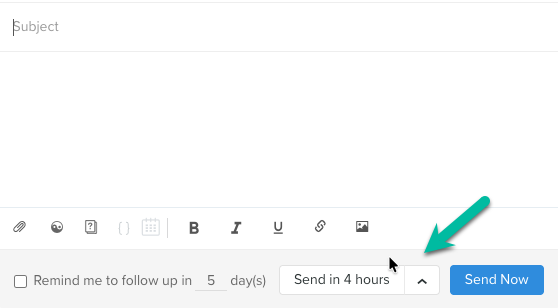
You can also choose to receive a reminder to follow up with candidates after sending the message.

Note: Follow-up reminders are not available for scheduled emails.
Once sent, the message will display in each candidate's profile.

Candidate Replies
When a candidate replies:
- The reply is saved in the candidate's Email tab.
- The user who sent the original email also receives the reply in the inbox associated with their Trakstar Hire account.
Need Help?
If you have questions about composing or scheduling candidate emails, contact Trakstar Support. hire@trakstar.com