
Add a Single Candidate
You can manually add an individual candidate to Trakstar Hire by uploading a resume or entering the candidate's information yourself. During the process, you can optionally assign the candidate to an opening, place them in a hiring stage, and add additional details to their profile.
Before You Begin
When adding a candidate, you can:
- Upload a resume to automatically populate the candidate's contact information.
- Enter the candidate's details manually if you don't have a resume.
- Optionally assign the candidate to an opening and hiring stage.
- Add additional information, such as a source, label, or description.
Add a Candidate
- From the left navigation menu, select Candidates.
- Click + Add Candidate.
-
Select Add Single Candidate.

- Choose one of the following options:
-
Upload a resume to automatically parse the candidate's name, email address, and phone number. Review the imported information before creating the candidate to ensure it is accurate and complete.

- Enter the candidate's information manually using the form below the upload area.
-
-
(Optional) Select an Opening and Stage to assign the candidate.

- (Optional) Expand More Options to add:
- A Label
- A Source
-
A Description

-
Click Create Candidate. The candidate profile is created and becomes available in your account.


Duplicate Detection
After a candidate is created, Trakstar Hire automatically checks for potential duplicate records based on the candidate's email address.

If a possible duplicate is found:
- A red duplicate indicator (double cross) appears next to the candidate's name.
- Select the indicator to review the potential duplicate records before taking further action.
Unassigned Candidates
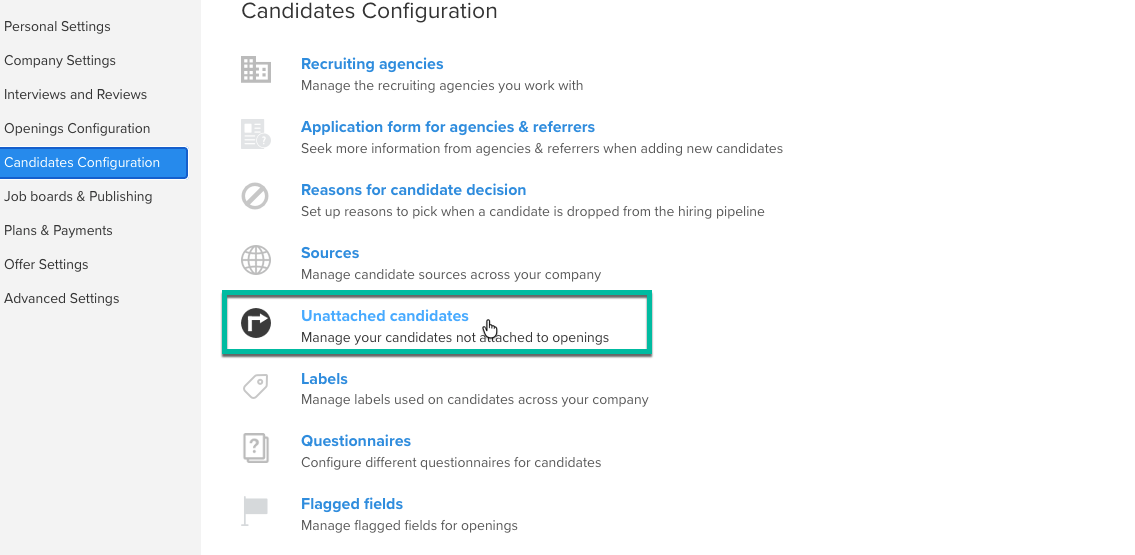
If you create a candidate without assigning them to an opening, the candidate is assigned to the user designated to manage unassigned candidates.
A Super Admin can configure this assignment in Settings by selecting the Unattached candidates
User Permissions
Users with roles below Super Admin can:
- Add candidates to openings they have access to.
- View candidates within those openings.
- View candidates they have uploaded themselves.
Access to other candidates and openings depends on the permissions assigned to the user.
Best Practices
- Upload a resume whenever possible to reduce manual data entry.
- Assign candidates to an opening and stage during creation to keep your hiring pipeline organized.
- Add a source and label to improve reporting and candidate organization.
- Review duplicate warnings before creating additional candidate records.
Questions? Feel free to write to us anytime! hire@trakstar.com